
Splice - Video Editor & Maker
Bending SpoonsVideo Players & Editors
3.64.33K Reviews
- Version
- Varies With Device
- Installs
- 10.00M
- Age Rating
- Everyone
Screenshots
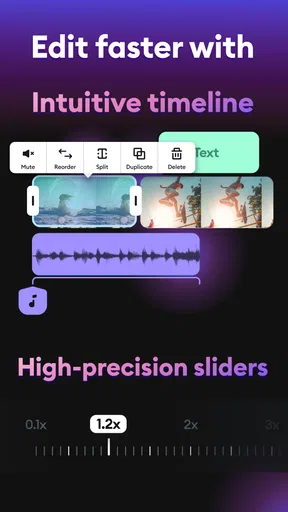
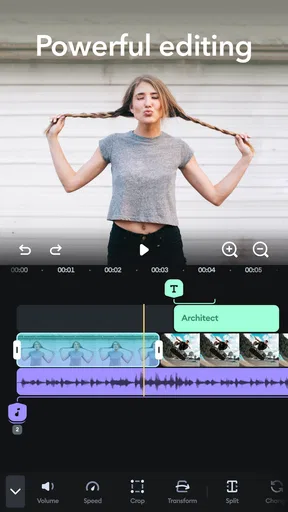
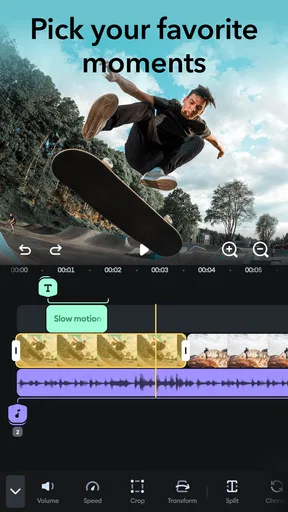
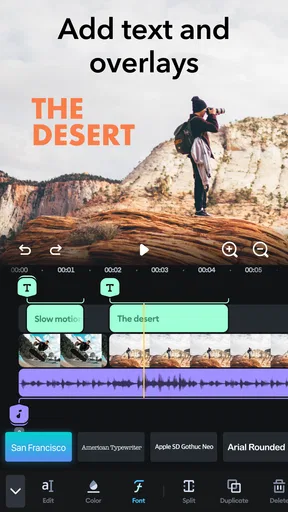
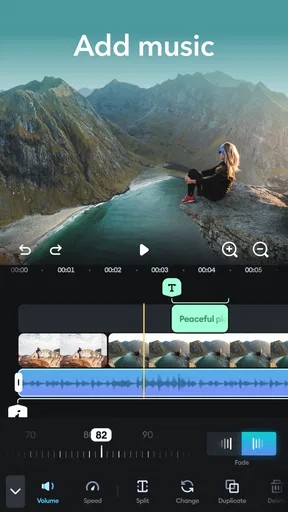
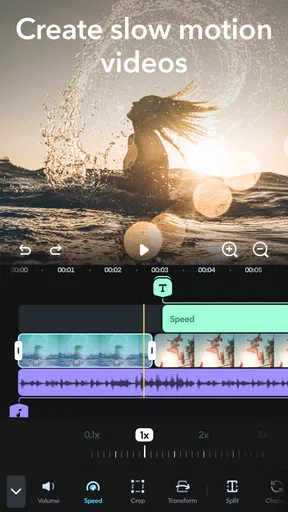
Our Review of Splice - Video Editor & Maker
 Analysis by Appyee
When I need to turn a handful of phone clips into something I can actually share, I want an editor that helps me make decisions rather than burying me in controls. That is the practical appeal of Splice - Video Editor & Maker: it is a mobile video-editing app from Bending Spoons, aimed at people who want to shape footage, add sound and text, and get a finished piece out without moving to a desktop workflow. I see it as a useful middle ground between automatic montage tools and editors built for detailed, professional timelines.
That middle ground matters in everyday work. A quick recap of a weekend, a short product clip, or a simple post for a personal account rarely needs a complicated production setup. It does need a clear beginning, a pace that feels intentional, and audio that does not drown out the moment. Splice gives me a compact place to handle those choices. It is free to install, rated for Everyone, and has a 3.7 average from around 138,000 ratings, so it is widely used but not universally loved. That mixed response is a useful reminder to treat it as a practical tool, not a guarantee of a perfect edit.
Getting Started with Splice
First off, downloading Splice is a breeze. Available for both Android and iOS, it’s just a quick trip to the app store, and you’re ready to roll. Once you fire it up, the app greets you with a clean, intuitive interface. I’m a sucker for good design, and Splice doesn’t disappoint. It’s sleek, it's modern, and best of all, it doesn’t feel overwhelming, even for beginners.
The onboarding process is smooth, guiding you through the essential features without bombarding you with too much info at once. You can tell the developers put a lot of thought into making the app accessible for everyone, from first-time editors to seasoned pros.
That low-friction start is most useful when the idea is still loose. I can begin with a few clips and decide what the story is while arranging them, instead of planning a full edit before opening the app. For example, after a day out, I might choose one wide shot to establish the place, keep a close-up for detail, and finish with the clip that has the clearest sense of movement. A simple sequence like that often feels more personal than a montage that treats every clip equally.
Splice is a video player and editor in the broader video-editing category, but its strongest role is the editing part: shaping short projects on a phone. It has been available since May 5, 2021, and has passed five million installs. Those figures tell me it has found a substantial audience, though they do not make it the right fit for every creator. If I were building a long film with many scenes, precise sound work, and a large library of assets, I would rather use a desktop editor with a wider workspace and more room for fine adjustments.
Features That Shine
Okay, so let’s talk features. What really sets Splice apart is its robust set of tools that are surprisingly powerful for a mobile app. You’ve got your basic trimming and cropping, but Splice takes it up a notch with features like:
- Multi-layer editing: This allows you to stack videos, images, and text on top of each other, giving your projects a more professional look.
- Audio editing: The app offers a decent library of royalty-free music, and you can even import your own tracks. Plus, the audio editing tools let you tweak sound levels and add effects effortlessly.
- Transitions and effects: From fades to wipes, the transition options are pretty slick, and they add a touch of elegance to your videos without being too flashy.
- Text overlays: Add titles, captions, and credits with a variety of fonts and styles to choose from.
One feature I found particularly cool is the ability to adjust video speed. Whether you want to create a dramatic slow-motion effect or speed up your footage for a time-lapse, Splice makes it simple to do.
For a cleaner result, I try to give each tool a job instead of using every option in one project. A restrained transition can connect two clips, but putting a different effect between every shot can make a short video feel busier than the footage deserves. Text also works better when it has a clear purpose: identifying a location, setting context, or making a key point readable without sound. This is especially helpful for social posts that people may watch while muted.
Layering is useful for more than decoration. I can use a second visual element to cover a cut, add a title over an establishing shot, or place a still image into a sequence when the original footage does not show an important detail. The trade-off is that every added layer creates another thing to check before export: timing, legibility, and whether it competes with the main image. On a phone screen, small text can look fine while editing and become hard to read later, so I prefer short lines and a quick full-screen preview.
The User Experience
Editing on a smartphone can sometimes feel cramped, but Splice manages to make it feel effortless. The touch controls are responsive, and the layout is optimized for smaller screens, which is a big win in my book. Plus, the app is incredibly stable—I didn’t experience any crashes or lag, even when working on more complex projects.
Another thing worth noting is how Splice allows for easy sharing. Once your masterpiece is complete, you can export it in various resolutions and share directly to social media platforms like Instagram, TikTok, and YouTube. It’s a seamless process, and it saves a ton of time.
For an everyday workflow, I would do the rough cut before choosing music. First I would remove the clips that repeat the same moment, then place the strongest images in a simple order, and only then look for a track that suits the pace. That order helps prevent a common mobile-editing trap: keeping weak footage because it happens to match a beat. If the video is meant to explain something, I would also check whether the story still makes sense with the sound off before spending time polishing the soundtrack.
Splice is best suited to short, self-contained edits that are ready to leave the phone once finished. A small business owner could assemble a quick behind-the-scenes post; a traveler could make a compact trip recap; a parent could trim together a family moment without learning a full editing suite. For a creator who publishes regularly, the value is in handling routine edits quickly. For someone who needs careful color correction, exact audio mixing, detailed keyframes, or a complex multi-scene project, a more specialized editor is likely to be a better use of time.
Room for Improvement
No app is perfect, and Splice is no exception. While it offers a lot of great features, I did notice a couple of areas where it could improve. For instance, while the music library is decent, it could benefit from a wider selection. More genre options would be a nice touch.
Also, while the app is free to download, there’s a subscription model for accessing all features and removing watermarks. It’s a common trend with apps these days, but it’s something to consider if you’re on a tight budget.
The cost deserves a closer look before committing to a regular workflow. Splice includes in-app purchases ranging from $0.99 to $209.99 per item, so “free” describes the download, not necessarily every tool or a watermark-free result. I would make a short test project first, check what the version I can use allows, and confirm the final output meets my needs before editing a large batch of clips. That avoids discovering a limitation only after investing time in a project.
There is also a practical difference between editing for a casual post and editing for a job. If I am making something for a client, I want to know in advance that I can deliver the required look and avoid a last-minute workaround. I would test one representative clip, including text and audio, then export it and watch the result outside the editor. For personal videos, I can be more relaxed; for work with a deadline, that small proof-of-work step is worth it.
Compared with a basic phone editor, Splice gives more room to combine visual and audio elements and shape timing. Compared with a full desktop application, it trades depth and workspace for convenience. Automatic video makers can be faster when I only want a ready-made montage, but they give me less say over the sequence. Splice makes more sense when I want to make the choices myself without turning a short clip into a large editing project.
Final Thoughts
Overall, I’m genuinely impressed with what Splice - Video Editor & Maker has to offer. It strikes a balance between ease of use and advanced functionality, making it a fantastic choice for anyone looking to edit videos on the go. Whether you’re creating content for social media, a personal project, or just having fun, Splice gives you the tools to make your vision come to life.
Is it perfect? No, but it’s pretty darn close. If you’re in the market for a mobile video editor that doesn’t compromise on features, give Splice a whirl. It might just become your new go-to app for all things video.
My recommendation is to start with one modest project that has a clear purpose: a short event recap, a simple tutorial, or a few clips that need trimming and a title. Keep the first cut lean, listen to the audio on headphones if the sound matters, and inspect the exported video before sharing it. That workflow shows quickly whether the app’s pace and controls suit you, while keeping the learning curve low.
For a beginner or a social creator who values a straightforward phone-based process, Splice is worth trying. It is less compelling if you need predictable access to every editing option without purchases, a deep music catalogue, or the precision of a desktop timeline. I would choose it for a quick, deliberate edit where convenience matters; I would choose another tool when the project depends on extensive fine-tuning. That is where Splice makes the most sense: a capable way to finish everyday videos, provided its limits match the job.
Verdict
Strengths of Splice - Video Editor & Maker
- Intuitive interface for easy editing.
- High-quality export options available.
- Rich library of effects and transitions.
- Supports multiple audio tracks.
- No watermarks on exported videos.
Limitations of Splice - Video Editor & Maker
- Limited advanced editing features.
- Subscription model can be pricey.
- Occasional app crashes reported.
- Limited free music tracks.
- In-app purchases can add up.
Other Releases by Bending Spoons
View All
Remini - AI Photo Enhancer
Photography4.1

Filmic Pro: Mobile Cine Camera
Photography2.3
Similar Picks in This Category
View All
Google TV
Google LLC3.9

iTunes
Apple4.7

YouTube
Google LLC3.8

MX Player
Amazon Mobile LLC4.2

CapCut - Video Editor
Bytedance Pte. Ltd.3.5

PLAYit-All in One Video Player
PLAYIT TECHNOLOGY PTE. LTD.4.5
Frequently Asked Questions
What features does Splice offer for video editing?
Splice provides a range of intuitive editing tools suitable for both beginners and professionals. Users can trim, cut, and merge clips, add transitions, and apply filters. Additionally, Splice offers a vast library of music and sound effects, text overlays, and the ability to adjust video speed, making it a versatile tool for video editing.
Is Splice free to use, or does it require a subscription?
Splice offers a free version with essential editing features. However, to access premium tools and a broader range of music and effects, users can opt for a subscription. This subscription model allows for more advanced functionalities and an ad-free experience, enhancing the overall user experience.
Can I use Splice on both Android and iOS devices?
Yes, Splice is available on both Android and iOS platforms, ensuring a seamless editing experience across devices. Whether you're using a smartphone or tablet, Splice's interface adapts well, providing a consistent and user-friendly experience regardless of your device's operating system.
Does Splice support high-resolution video exports?
Splice supports exporting videos in high resolution, including 1080p and 4K. This feature is especially beneficial for users looking to maintain high quality for professional projects or personal videos, ensuring your final product meets your desired standards without compromising on quality.
How user-friendly is Splice for beginners?
Splice is highly user-friendly, making it ideal for beginners. The interface is intuitive, with drag-and-drop functionality and easy-to-navigate menus. Tutorials and guides are available within the app to help new users get started quickly, allowing them to create professional-looking videos with minimal learning curve.
